
Test Plans
A Test Plan runs a selection of saved Test Cases together. Use one for release smoke checks, checkout coverage, role-based checks, or a recurring health check. Each execution runs in the background and saves a result in Runs.
Before you begin
Create and review the Test Cases you want to include. Plans execute Active cases with steps. For a guided path from coverage to a plan, see Build regression coverage.
1. Create the plan and choose coverage
Open Test plans, click Create, and enter a name such as Release smoke checks. Choose the saved coverage under Test scope:
| Scope | Use it for |
|---|---|
| All test cases | The project's full Active coverage. |
| By folder | A maintained collection, including selected folders' descendants. |
| By priority | Risk-based coverage, such as High-priority checks. |
| Select manually | A specific, explicitly chosen set of cases. |

2. Choose when the plan runs
You can leave both switches under Automatic runs off and use the plan as a manual release check. Enable either switch or both when you are ready to automate.
On a schedule
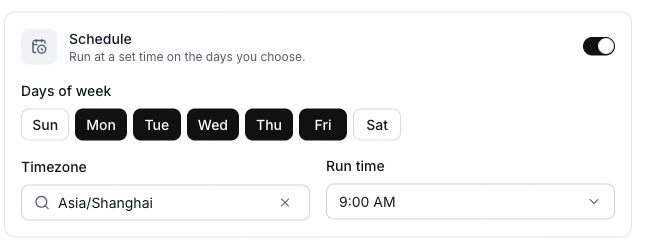
Turn on Schedule, choose Days of week, set Timezone, and select one Run time on the hour. The example below checks the suite at 9:00 AM, Monday through Friday, in Asia/Shanghai.
After a deployment
Turn on Webhook, copy the generated Webhook URL, and save the plan. Call this secret URL after deployment succeeds. Follow Test after a deployment for the complete pipeline and notification setup.
Automatic execution requires an Active plan and sufficient workspace credits. Schedules dispatch in the production workflow environment; local development and staging do not dispatch schedules automatically.
3. Save and verify the plan
Save the form, then use the plan's Run action, or select Run test plan in the QA Agent and choose the saved plan. Click Run and open its result in Runs.
Check which cases actually executed and inspect any failures. Test Plans always run in the background. An Inactive plan can still be run manually; its status controls automatic execution.
Check your progress
The saved plan executes the intended cases and produces a result you can find in Runs.Maintain the coverage
The plan resolves scope for each new run. Changing folders, priorities, status, or case instructions can change later results. Review the selected coverage after such edits. See Test scope and automatic runs for details and Runs for status behavior, including zero-execution results.