
One-time password secret
Learn when to fill in a test account's one-time password secret and where to find it.
Fill in One-time password secret only if the account you are testing has authenticator-based two-factor authentication (2FA) enabled. If the account signs in without an authenticator code, leave this field blank.
This setting belongs to the test account on your application under test. It is separate from two-factor authentication for your own HiTest login.
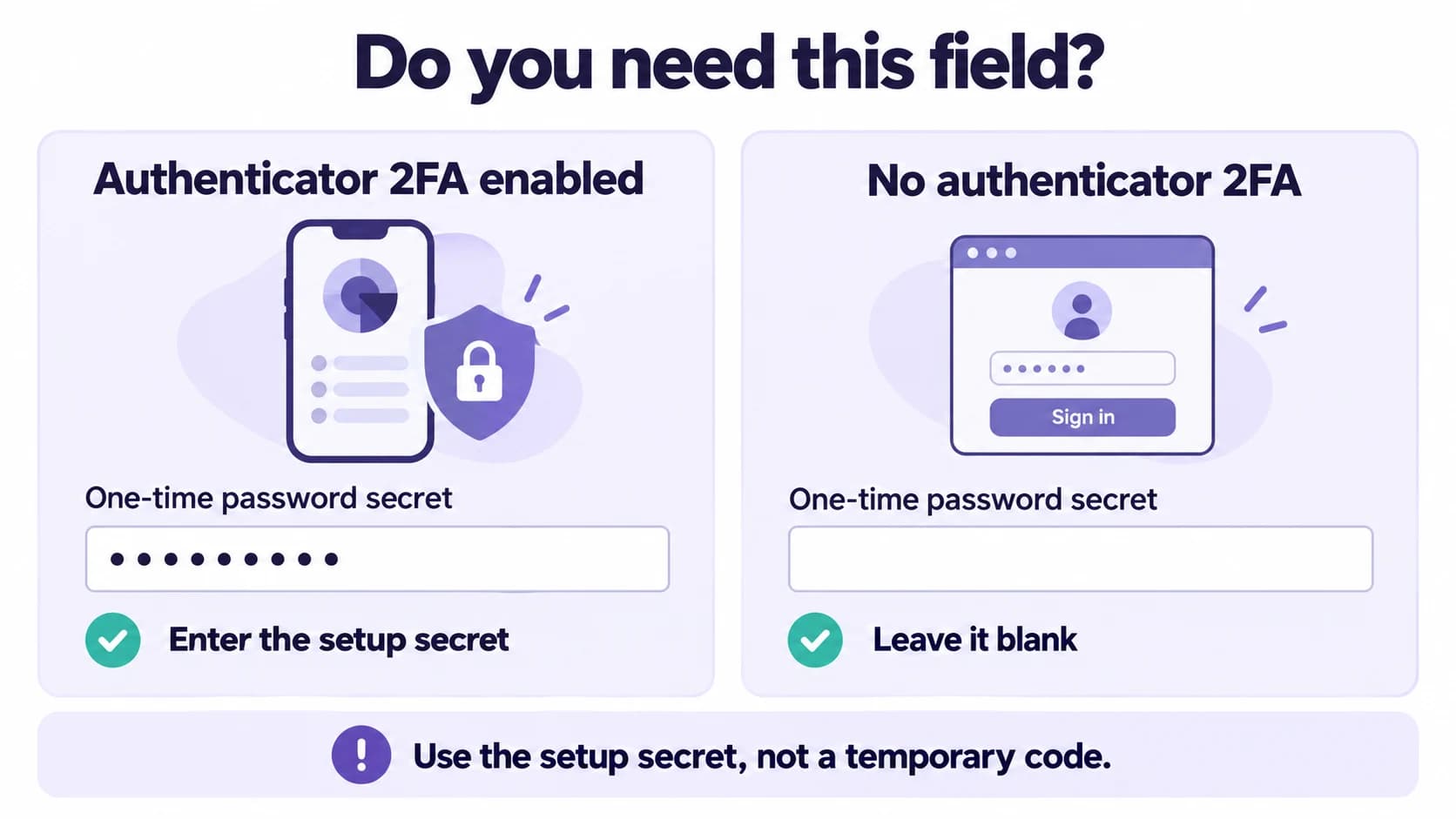
Illustration: only accounts with authenticator-based 2FA need this field.
What to enter
Enter the shared setup secret used to connect the test account to an authenticator app. HiTest uses this secret to generate a fresh time-based one-time password (TOTP) when an authenticated test needs one.
The field accepts either:
- A Base32 secret: The text setup key shown when you enable an authenticator for the account. It may be labeled Setup key, Secret key, or Manual entry key. You can paste it with spaces; HiTest removes whitespace and accepts lowercase or uppercase letters.
- A TOTP setup URI: The full setup link beginning with
otpauth://totp/. This is the setup information encoded in an authenticator QR code. Use the full URI if your application provides it, especially when it specifies custom code settings.
Do not enter the temporary code displayed by your authenticator app. A temporary code expires and cannot be used as the setup secret. Recovery codes, account passwords, and QR code images are also not valid values for this field.
Find the secret and save it in HiTest

Illustrative screens; the exact labels depend on your application. Complete its authenticator setup before using the secret in HiTest.
- Sign in to the dedicated test account on the application you want to test.
- Open that application's account security settings and find its authenticator or two-factor authentication setup.
- If you are setting up an authenticator, look for an option such as Can't scan the QR code?, Enter setup key manually, or Show secret. Copy the text setup key, or the full TOTP setup URI if one is provided.
- Complete the application's authenticator setup, including its verification step, so two-factor authentication is enabled for the account.
- In HiTest, open your project, go to Test Accounts, and create or edit the matching account.
- Paste the setup key or TOTP setup URI into One-time password secret, then save the test account.
- Select this test account for tests that need to sign in. When the sign-in flow asks for an authenticator code, HiTest can generate it from the saved secret.
If authenticator-based 2FA is already enabled, check whether the application's security settings let you view the existing setup key. If the key is no longer available, follow that application's recovery or authenticator reconfiguration process for the test account, then save the new secret in HiTest. The current temporary code does not reveal the setup secret.
When to leave it blank
- The test account does not have two-factor authentication enabled.
- The account uses a sign-in method that does not request an authenticator code.
- The account uses email codes, SMS codes, push approval, or a security key instead of TOTP. Those methods do not provide a TOTP secret for this field and need their own sign-in handling.
Saving a secret in HiTest does not enable two-factor authentication on the application under test. Configure it on the test account first, and only fill in this field when that account uses it.
If sign-in codes are rejected
Confirm that the secret belongs to the same account and environment as the saved username and password. If the authenticator was reset or replaced, update the secret in HiTest. If the application uses custom TOTP settings, paste its full setup URI so those settings are preserved.
Treat the setup secret like a password. Store it in the test account field rather than test steps, issue descriptions, or screenshots. See Test Accounts for the rest of the account setup.