Visual Regression Testing: Build Baselines You Can Trust
 By Xusheng Yang
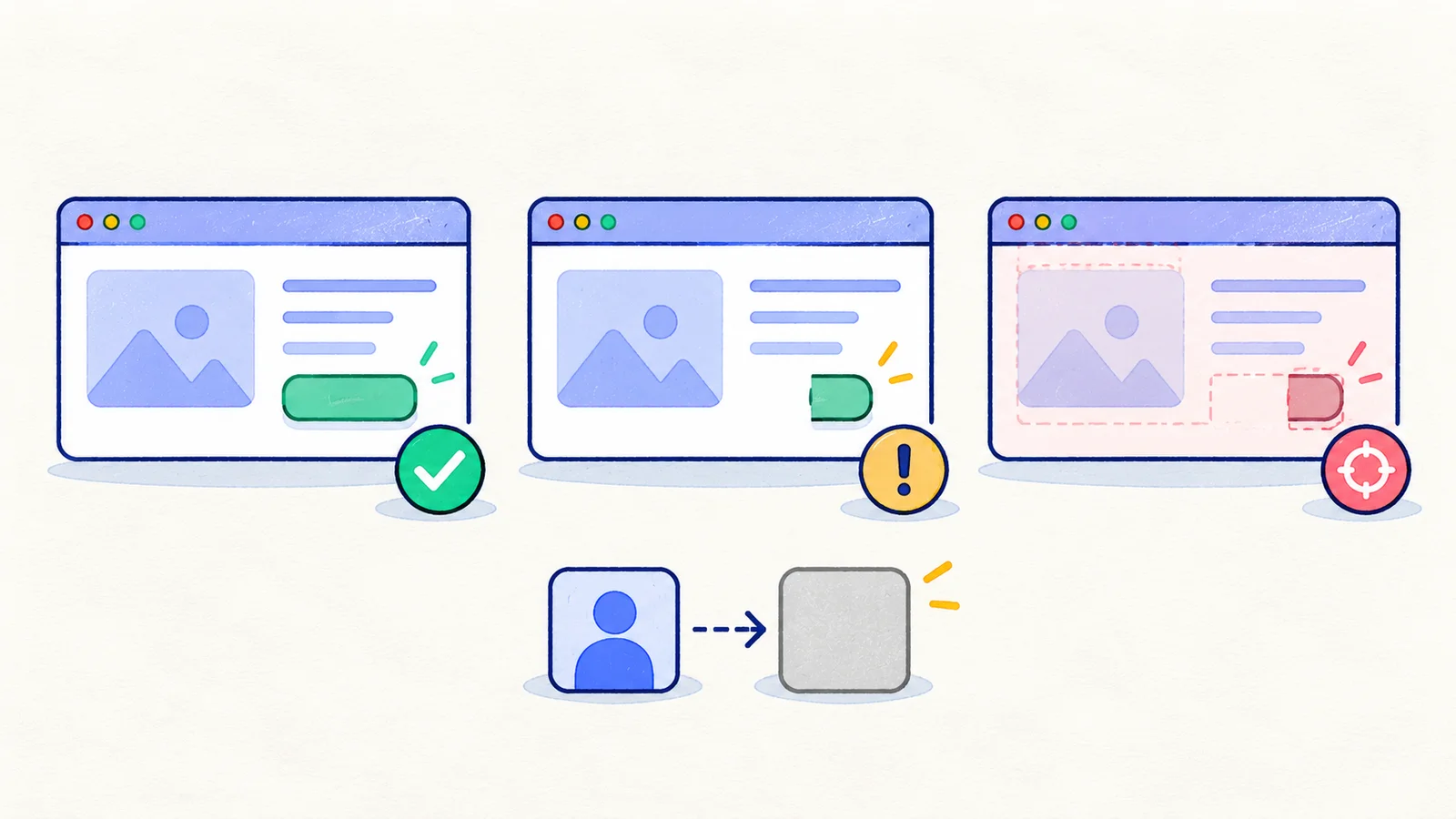
A CSS change clips the Save button at a narrow viewport. The form still submits through a scripted click, and its text remains in the DOM. A visual comparison can reveal the presentation defect, provided its reference image and capture conditions are meaningful.
Visual regression testing compares a rendered view with an approved baseline. Its practical value comes from selecting useful states, controlling irrelevant variation, and reviewing differences against the intended design.
This is part 19 of Testing Methods in Practice. The settings form and changes below are illustrative; no screenshot comparison results are claimed.
Choose checkpoints around user decisions
Start with a form ready to submit, a validation error, an open confirmation dialog, and a narrow-viewport version. Each checkpoint protects a different layout responsibility.
Avoid capturing arbitrary moments during loading. Wait for the defined state: required data loaded, fonts ready, relevant images visible, and transitions settled. A stable empty skeleton is not an acceptable baseline for a populated settings page.
| Checkpoint | Main visual risk | Related functional check |
|---|---|---|
| Populated settings form | Clipped fields or hidden primary action | Values can be edited and saved |
| Validation error | Error obscures input or shifts the action off-screen | Correcting the field allows submission |
| Confirmation dialog | Overlay, text overflow, or misplaced controls | Keyboard and pointer interaction remain usable |
| Narrow viewport | Horizontal overflow and stacked-layout defects | The same task can be completed |
The functional check gives context to the screenshot. A visually matching page can still submit the wrong data.
Stabilize the environment and fixture
Record browser version, operating system, viewport, device scale, fonts, locale, and timezone. Use the same rendering environment for baseline and comparison where possible.
Prepare recognizable fixture content with controlled lengths. Freeze the displayed time when it is incidental to the checkpoint. Wait for font loading rather than approving a fallback-font rendering that changes later.
Playwright's visual comparisons documentation explains screenshot assertions and the effect of rendering environments. Differences between platforms can create image changes without a product regression, which is why the capture conditions belong with the baseline.
Mask only content that is outside the test's purpose
A rotating avatar or unrelated timestamp may be masked if its appearance is not under test. A price, validation error, or primary action should remain visible when it is central to the checkpoint.
Review the mask itself. A selector that grows to cover a whole panel can hide the defect you meant to detect. Prefer deterministic data over broad masks when the content affects wrapping or alignment.
Similarly, a generous pixel threshold can absorb both harmless anti-aliasing and a genuinely clipped control. Choose tolerances based on inspected differences, not simply on the value that makes the current run pass.
Review differences before updating the baseline
Compare the reference, current image, and difference view. Identify the exact changed region and whether it follows an approved design change. Inspect the rendered page when the difference affects usability or is hard to interpret from pixels alone.
If a button moved intentionally, verify that it remains visible, reachable, and correctly labeled before accepting the new image. If the difference is unexplained, investigate the fixture or environment instead of overwriting the reference.
Record why the baseline changed and which reviewer accepted the visual outcome. Bulk approval without inspection turns visual tests into a record of the latest rendering rather than a guard on intended presentation.
Pair image evidence with behavioral evidence
For the clipped Save button, inspect the narrow viewport and try the actual user journey. Does a user need horizontal scrolling? Can keyboard focus reveal the action? Does an overlay block input?
The existing Visual AI QA article discusses interpreting rendered changes during a journey. Baseline comparison adds a different capability: identifying presentation changes against an approved view. Neither technique alone establishes every functional, accessibility, or responsive requirement.
Keep a few representative viewport baselines, selected around meaningful layout breakpoints. A desktop image and a mobile image cannot prove every intermediate width is correct; add targeted checks where the layout is known to change.
Try a controlled visual defect
In a disposable branch or fixture page, reduce the form width or introduce a known clipping rule. Confirm that the selected screenshot checkpoint exposes the defect and that the reviewer can understand the difference.
Your exercise: define three visual checkpoints for one feature. For each, document the fixture, environment, masks, expected state, and approval rule. Add one functional assertion and one keyboard journey so the visual result stays connected to actual use.
Next in the series: Flaky-test diagnosis.