Keyboard Accessibility Testing: Complete a Journey Without a Mouse
 By Xusheng Yang
A dialog looks correct and every button responds to a mouse. A keyboard user opens it, tabs into the page behind it, and cannot find the confirmation action.
Keyboard accessibility testing follows a real task using keyboard input and checks whether navigation, activation, and focus behavior allow the user to finish. It also exposes functional problems that a screenshot or an automated scan can miss.
This is part 18 of Testing Methods in Practice. The sample journey edits a notification preference and saves it through a modal confirmation. It is an illustrative test design, not an accessibility audit result.
Pick a complete task and a starting point
Start at the application entry page with a dedicated test account. The task is to open settings, change a notification preference, review a confirmation dialog, save, and return to the settings page.
Record browser, operating system, zoom, viewport, and relevant keyboard-navigation settings. Some platforms have settings that change which controls receive tab focus. Keep those conditions visible in the report rather than calling every platform difference a product defect.
W3C's explanation of WCAG 2.2 Keyboard provides the basis for checking keyboard-operable functionality. A successful keyboard journey is useful evidence, but does not establish full WCAG conformance.
Walk the focus path deliberately
| Journey step | Keyboard action | What to observe |
|---|---|---|
| Reach navigation | Tab through the entry page | Focus is visible and follows a meaningful route |
| Open settings | Activate its link | Correct destination loads; new context is understandable |
| Change a preference | Use the control's documented keys | Value changes and its state is exposed correctly |
| Open confirmation | Activate Save | Focus enters the dialog at a useful location |
| Review modal controls | Tab and Shift+Tab | Focus stays in the active modal interaction |
| Cancel or close | Use supported cancel control or Escape policy | Focus returns to a sensible trigger |
| Confirm save | Activate confirmation | Result is clear; no invisible overlay blocks continuation |
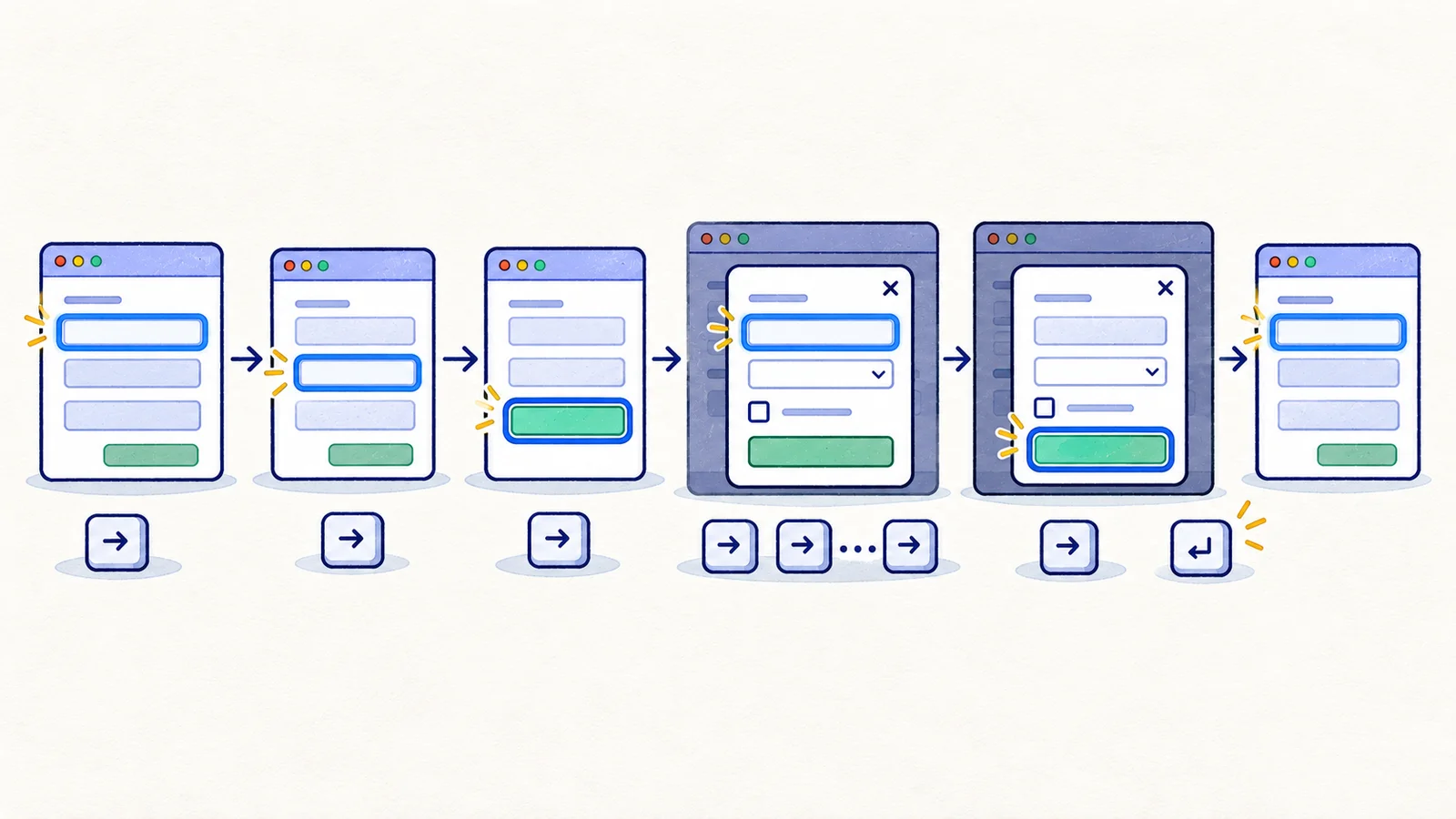
Use keys appropriate to the control. Native buttons and links have established activation behavior; custom composite controls may require arrow keys. Randomly pressing every key is less useful than checking the intended interaction model.
Inspect focus as visible state
Watch the focus indicator at each step. A technically focused element can be scrolled outside the viewport or hidden behind a sticky header. Check whether a user can tell where they are and what action will happen next.
After a rerender, the focused control may disappear. Verify the recovery location and whether the user can continue without restarting the journey. In a long form, losing focus to the top of the page can make an otherwise working save difficult to use.
Capture screenshots at failures, including the active dialog or overlay. For issues that require a sequence, include the keys and prior focus location in reproduction steps. A static image alone cannot establish the path that led there.
Include error and cancellation paths
Submit a form with a missing required value. Check that the error is associated with the field, that the next useful action is reachable, and that valid input is retained. Error announcements need a screen reader or appropriate accessibility inspection in addition to visual checks.
Open a modal, cancel it, then reopen it. Confirm that controls remain reachable and focus does not get stranded in a removed element. If an operation is pending, follow the product's defined cancellation and close behavior rather than assuming every dialog must accept Escape in every state.
Combine automation with manual observation
Automated checks can detect some structural problems, such as missing accessible names or invalid relationships. Browser tests can press keys, assert focus on a meaningful control, and check selected state transitions.
Playwright's accessibility-testing guidance explains using automated scans and their limitations. A clean scan cannot demonstrate that a custom widget is understandable or that the whole journey works with a keyboard and assistive technology.
Keep screen reader testing as an additional task with its own browser and assistive-technology conditions. Do not label a keyboard-only run as a complete screen reader audit.
Preserve the journey as a regression case
Write the starting page, exact task, significant key actions, expected focus destinations, and recovery behavior. Avoid relying on a brittle absolute number of Tab presses when the real requirement is reaching an identified control in a sensible order.
Your exercise: complete one common workflow without touching the mouse or trackpad. Record every point where focus is unclear, an action is unreachable, or an error makes continuation difficult. Turn one reproducible finding into a case with visible evidence and a clearly scoped claim.
Next in the series: Visual regression testing.