User Invitation Test Cases: Expired Links, Roles, and Existing Accounts
User invitation test cases should follow the invitation all the way to membership. Sending an email is one observation. Confirming that the intended person joined the intended workspace with the intended role is another.
The difficult cases often involve existing state: the recipient is already signed in with another account, the invitation was revoked, an admin changed the proposed role, or the recipient belongs to several organizations. Build your checklist around those conditions.
Define what an invitation authorizes
Before writing cases, document who may invite, which roles they may grant, how long an invitation remains valid, and whether acceptance is bound to a particular identity or verified address. Also define what resending does to older links and what happens when an already-active member is invited again.
These rules differ across applications. A test should not assume that all invitation links are interchangeable bearer links, or that every product allows acceptance by any signed-in user.
Prepare two workspaces, an inviter, a fresh recipient, an existing recipient, and a separate signed-in identity. Use approved inbox access and disposable membership data.
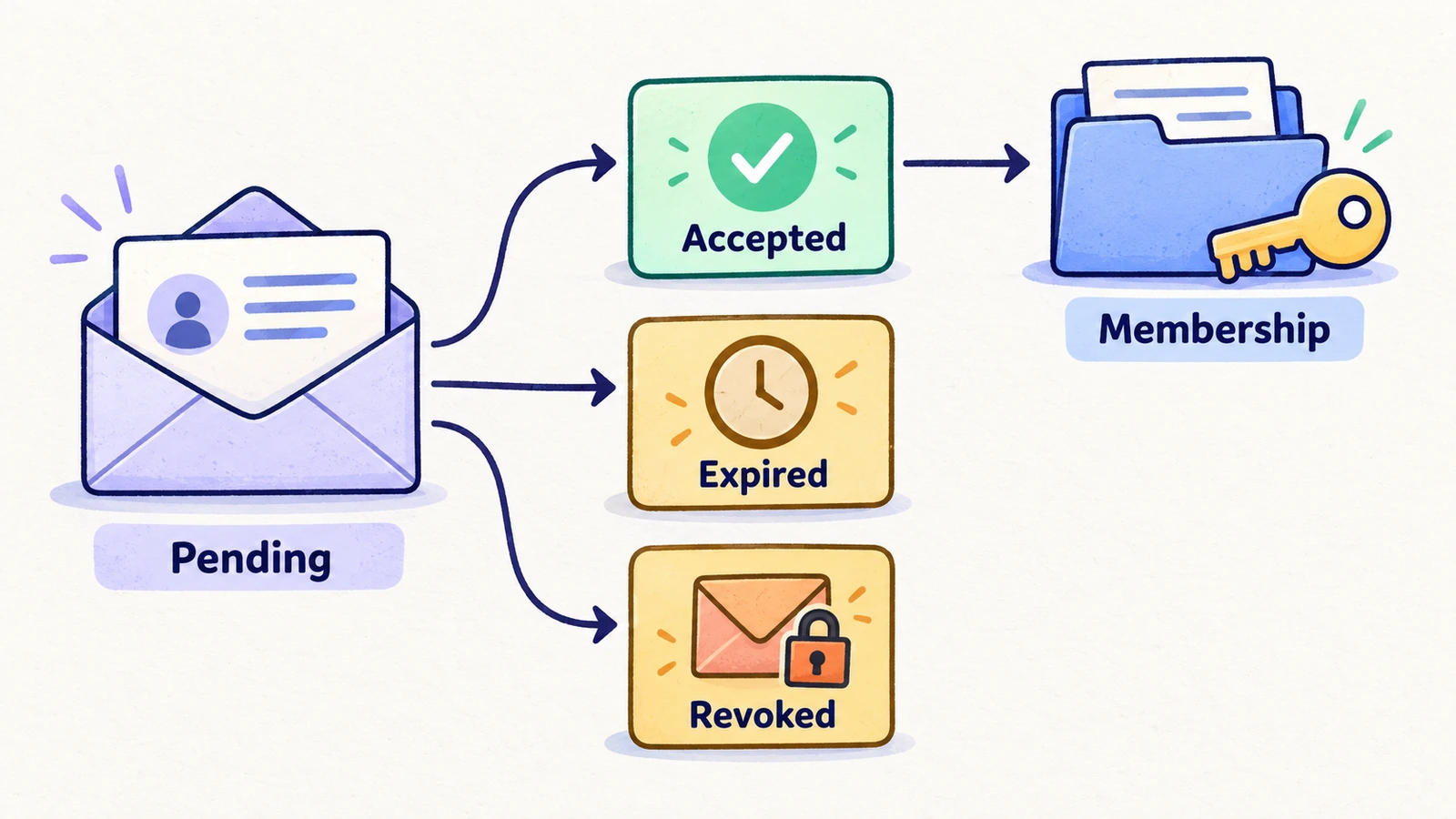
Sending and managing invitation test cases
| Case | Action | Expected result |
|---|---|---|
| Authorized inviter | Invite a fresh recipient as an allowed role | One pending invitation contains the intended recipient, workspace, and proposed role |
| Restricted inviter | Attempt the workflow as a user without invitation permission | The action cannot be completed; backend enforcement is covered separately |
| Invalid recipient | Submit a malformed recipient address | A useful validation message appears without creating an invitation |
| Duplicate pending invite | Invite the same recipient again | Behavior follows the documented resend or duplicate rule |
| Existing member | Invite someone already in the workspace | The app avoids unintended duplicate membership or role escalation |
| Role choice | Select each role the inviter is allowed to grant | The invitation reflects the chosen role and disallows unsupported grants |
| Seat limit | Invite when the workspace has reached its configured limit | The product follows its seat policy and explains any restriction |
| Revoke | Revoke a pending invitation | The invitation is marked appropriately and its link no longer grants membership |
| Resend | Resend a pending invitation | Delivery is attempted and old-link behavior follows the documented policy |
Do not treat an on-screen “sent” message as proof of email delivery. Check receipt through the prepared inbox or a separate delivery check. A browser-only case may cover the UI while leaving delivery explicitly unverified.
Acceptance and workspace-routing test cases
| Case | Starting condition and action | Expected result |
|---|---|---|
| Fresh recipient | Open a valid invitation without an existing account | Registration and acceptance lead to the invited workspace with the proposed role |
| Existing recipient | Open a valid invitation for an existing account | The account gains the intended membership without losing unrelated memberships |
| Wrong signed-in account | Open the invitation while signed in as another identity | The app follows its identity-binding rule and offers an appropriate account-switch path |
| Expired link | Open an expired invitation | No membership is granted; the user gets a useful next step |
| Revoked link | Open the link after revocation | Acceptance is unavailable and no membership is created |
| Repeated acceptance | Reopen a successfully used link | The app handles the visit coherently without duplicating membership |
| Role changed before acceptance | Update the invitation role, then accept | The accepted role follows the documented change policy |
| Multi-workspace recipient | Accept while already belonging to another workspace | The intended workspace is identifiable and both memberships remain correct |
| Return visit | Sign out and back in after acceptance | The invited workspace remains accessible with the correct role |
| First permitted action | Perform a task granted by the invited role | The action works within the intended workspace |
| First forbidden action | Attempt a task outside that role | The restricted workflow cannot be completed |
Use the RBAC test matrix for detailed permission checks after acceptance. The invitation suite should establish that the membership was created correctly; it does not need to repeat every role scenario.
Example: accepting as the wrong signed-in user
Consider a product whose invitations require the recipient's verified address. The following is an illustrative test specification for that policy.
Preconditions: a pending invitation for the intended test recipient, a different signed-in test identity, and a disposable workspace.
- Open the pending invitation in the other identity's browser session. Expect the app to show the recipient mismatch or direct the user through the approved identity check.
- Confirm that the other identity has not gained membership.
- Switch through the supported sign-in flow to the intended recipient.
- Resume acceptance. Expect membership in the invited workspace with the intended role.
- Reopen the workspace after signing in again. Expect the same membership and role.
If your product deliberately supports a different acceptance policy, change the expected results. The purpose is to verify your identity rule consistently, not to impose this example on every SaaS app.
Prepare data so retries remain meaningful
An accepted invitation is no longer a fresh pending invitation. Reusing it in a later “first acceptance” case changes the test. Provision separate invitations for expired, revoked, and valid-link cases, and record how each state was prepared.
Resend and role-edit cases can also affect one another. Avoid parallel runs mutating the same invitation. Give each run a disposable recipient or isolated workspace, and clean up both pending invitations and created memberships according to the test plan.
When a case fails, preserve the starting invitation state, active identity, workspace, link status, and observed outcome. Keep invitation URLs and access tokens out of public reports.
Use HiTest for reviewed invitation journeys
Create manual cases for the acceptance behavior your team has approved. Use explicit test account context for logged-in portions. If inbox retrieval or fresh-account setup is outside the available browser flow, prepare that state separately and record the boundary.
Do not assume one case can switch between multiple stored accounts automatically. Split inviter and recipient work into independently prepared cases when that makes execution reliable. Connect them through known setup rather than an unrecorded dependency on a previous run.
See signup and onboarding cases for the registration portion of a new recipient's journey.
Frequently asked questions
What should an invitation test assert after acceptance?
Assert identity, workspace, role, membership persistence, and one role-relevant action. A welcome screen alone is weak evidence of the membership created.
Should resending invalidate the old invitation link?
That depends on the product's invitation policy. Document the rule and test both the old and new link against it.
Can email delivery and acceptance be tested separately?
Yes. Separate checks make failures easier to identify, provided the coverage record is clear about which part each check verifies and there is still coverage of the connected journey.