Role-Based Access Control Test Cases: Admin, Member, and Viewer
Role-based access control test cases should verify two outcomes: people can do the work their role permits, and they cannot complete actions their role forbids. Checking whether a settings link is visible covers only part of that behavior.
Start with a permission matrix, prepare separate accounts, and test allowed and denied paths against the same resource. Add organization context wherever a user can belong to multiple workspaces. A role name alone does not tell you which customer's data the account may access.
Write a permission matrix before writing cases
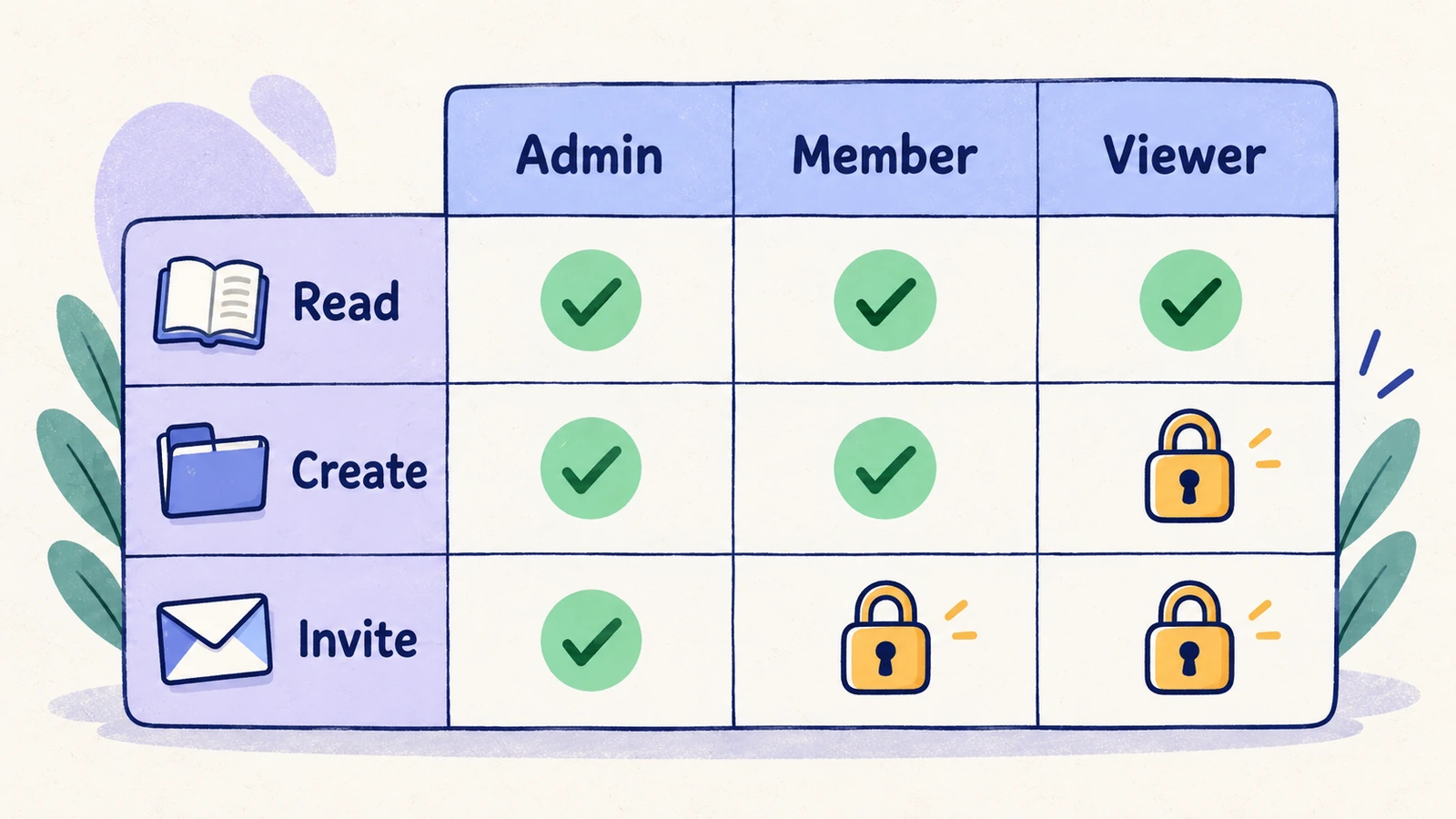
The following matrix is an example policy for a workspace app. It is not a universal definition of admin, member, or viewer. Your product owner should approve the actual rules, including ownership exceptions and custom permissions.
| Action | Admin | Member | Viewer |
|---|---|---|---|
| Read workspace projects | Allow | Allow | Allow |
| Create a project | Allow | Allow | Deny |
| Invite a teammate | Allow | Deny | Deny |
| Change another user's role | Allow, subject to owner rules | Deny | Deny |
| Manage billing | Allow if designated billing owner | Deny | Deny |
Prepare at least one account per role and two workspaces with distinguishable data. Avoid switching the role of one shared account between all tests: cached sessions and parallel runs can make the starting condition uncertain.
OWASP recommends denying access by default and validating authorization on every request. A hidden UI control does not establish server-side enforcement. Pair browser scenarios with integration tests that exercise the relevant endpoints. OWASP Authorization Cheat Sheet.
Core role-based access control test cases
Use disposable records and an authorized test environment for the following cases.
| Case | Action | Expected result |
|---|---|---|
| Allowed read | Open a workspace project as each permitted role | The intended record is readable with the correct workspace context |
| Allowed creation | Create a project as a role permitted by the matrix | The saved project belongs to the selected workspace |
| Restricted creation | Attempt the same workflow as a viewer | Creation cannot be completed and no project is created |
| Admin navigation | Open member management as an admin | The expected management controls are usable |
| Restricted navigation | Open the known management URL as a member | The app handles denied access without exposing protected content |
| Restricted mutation | Exercise the restricted operation through an integration test | The server rejects it and the target record remains unchanged |
| Resource ownership | Try editing another user's restricted record | Behavior follows the documented ownership rule |
| Organization boundary | Use a workspace A account to request a workspace B resource | The resource is unavailable to that account |
| Role downgrade | Downgrade an account while its browser session remains open | Subsequent actions follow the documented revocation policy |
| Role upgrade | Grant an additional permission and revisit the affected workflow | Access becomes available according to the documented refresh policy |
| Member removal | Remove a test member and retry a protected action | Access is revoked according to the product's session policy |
| Owner safeguard | Attempt an owner transfer or final-owner removal in a disposable workspace | The product enforces its ownership continuity rule |
For boundary tests, knowing the resource identifier in advance makes the assertion stronger. An empty list may simply mean that the UI never asked for the other workspace's data. Test the relevant backend access separately rather than treating the empty list as complete isolation proof.
Example: verify a member cannot invite teammates
Suppose the approved policy reserves invitations for admins. A useful browser specification is:
Preconditions: an admin account and a member account in the same staging workspace; a disposable recipient; a documented invitation policy.
- As admin, open the invitation screen and confirm that the supported invitation workflow is available.
- Start a separate browser session as the member. Confirm the identity and active workspace.
- Try reaching the invitation workflow through ordinary navigation and its known route. Expect access to follow the member restriction.
- Confirm no invitation was created by the denied browser attempt.
- In an integration check, submit the invitation operation using the member's authorization context. Expect denial and no new invitation.
This is a test design example. It does not claim that a browser agent can inspect all invitation records or issue arbitrary authenticated API requests. The final two observations require the evidence sources your team has prepared.
Test permission changes with a session already open
Many useful regressions occur during a transition. An account opens the member list as admin; another admin downgrades it; the first account submits a change from its old tab.
Write the intended revocation rule before automating that scenario. If your product permits a documented propagation interval, test against that interval. Avoid inventing a universal immediate-refresh promise. Record the time of the role change and the time of the attempted operation so that a reviewer can distinguish stale UI from an enforcement failure.
Also check workspace switching. A person can be an admin in one organization and a viewer in another. Switch between those organizations and repeat the affected operation; the application should use the active organization's policy, including after a reload or direct navigation.
Keep role, plan, and ownership separate
A feature can depend on a paid plan as well as a role. A workspace admin may be allowed to manage a feature that the workspace has not purchased. Another resource may be editable only by its creator, even though two users share the same role.
Record these conditions separately in the test: role, workspace, subscription state, resource owner, and expected action. When a failure occurs, that context makes the rule under test identifiable. See subscription testing for entitlement transitions.
Run browser permission checks in HiTest
Create distinct test accounts for the roles your case uses. Include the intended workspace in account context, then write actions and expected results for each visible workflow. Keep denied access as an explicit expected result; an agent must not switch to a more privileged account to finish the task.
Review screenshots or recordings when available alongside the account and failed step. Treat the result as evidence for the tested journey. Endpoint-level authorization, tenant isolation, and a full security assessment need their own coverage.
See role-based workflow testing with HiTest for how these browser checks fit into the product workflow.
Frequently asked questions
Is hiding an admin button enough to pass an RBAC test?
It can satisfy a navigation requirement, but not an authorization requirement. Verify denied access through relevant routes and backend operations as well.
How many accounts are needed?
Start with separate accounts for the roles in the permission matrix and distinct organization data. Add ownership, custom-role, and subscription variations when they change the expected outcome.
Are RBAC regression tests a security audit?
They check specified permission behavior. They do not establish that every request, resource, integration, or attack path is secure. Use them alongside dedicated authorization and security testing.